
Store Launch Playbook
Build, review, and publish a Taintless storefront with the same checklist a careful operator would use before going live.
This playbook is for store owners who want more than a quick setup. It walks through the full path from a new Taintless store to a published storefront that feels ready for customers.
Use it in order the first time you launch. After launch, use the checklists whenever you make a meaningful change to copy, navigation, products, pricing, SEO, checkout, or the public domain.
Before you begin
Keep your Tebex Creator Panel open in another tab. Taintless reads your product catalog from Tebex, but checkout, final basket totals, customer authentication, and payment processing remain controlled by Tebex.
What good looks like
A launch-ready store is not just published. It is understandable, trustworthy, and easy to buy from.
| Area | Launch standard |
|---|---|
| Catalog | Products, categories, images, and prices are synced from Tebex and make sense to a first-time visitor. |
| Home page | The hero explains the offer quickly, the strongest products are easy to reach, and trust signals are visible without overexplaining. |
| Navigation | Header links match the store structure. Pages and sections are not accidentally hidden or exposed. |
| Product detail | Each key product has a clear title, readable price, useful description, CTA, and supporting details. |
| Cart and checkout | Add-to-cart, quantity, remove, and Tebex checkout handoff work as expected. |
| SEO and sharing | Site-wide SEO is set, and important pages or products have overrides when needed. |
| Mobile | Header, product grid, cart, and checkout CTA are comfortable on a phone. |
| Live confidence | Save, preview, publish, and live status are understood before customers arrive. |
1. Prepare the Tebex store
Start in Tebex, not in the editor. Taintless can make the storefront sharper, but it should not be used to hide a messy catalog.
Before creating the store, check:
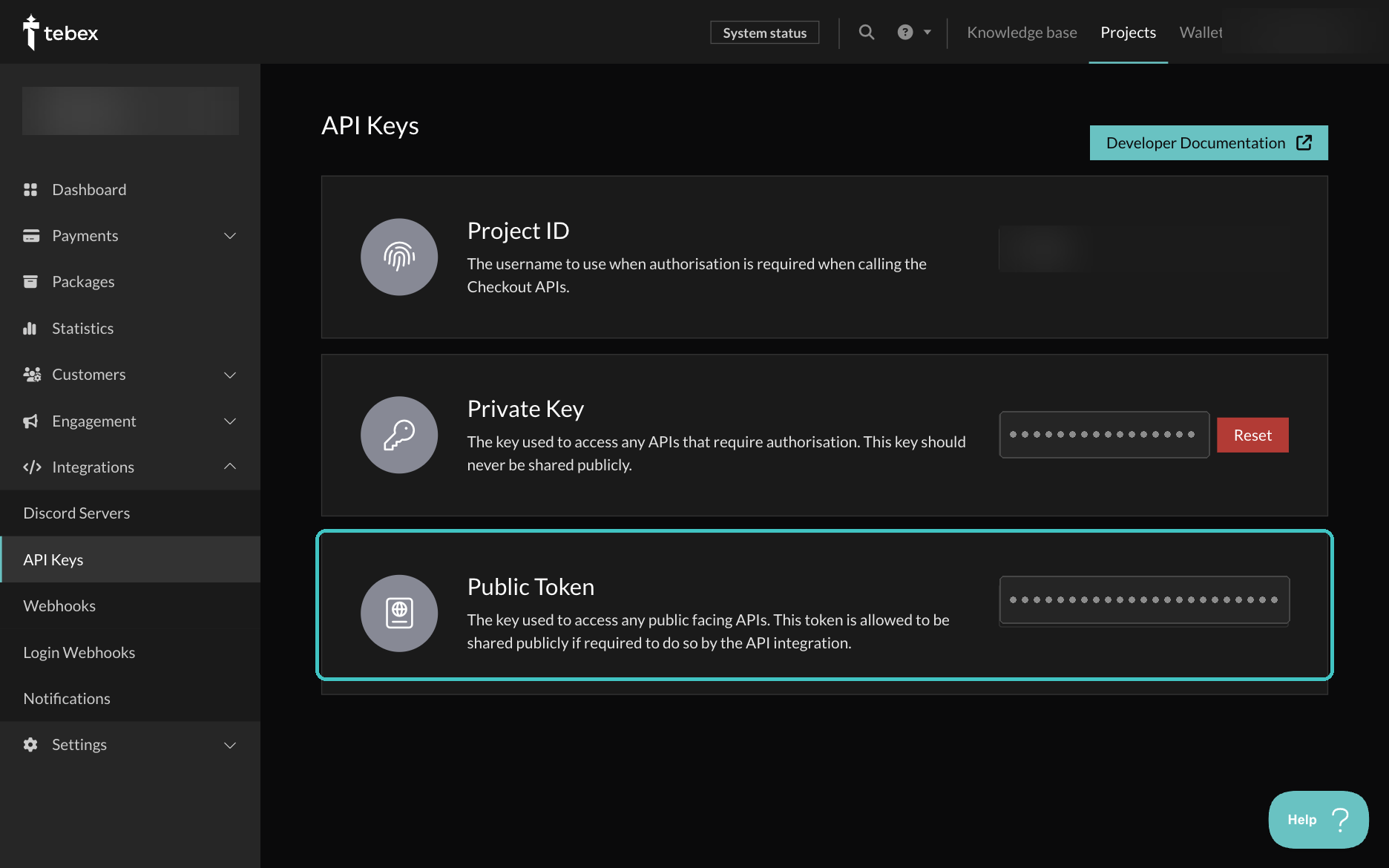
- Your Tebex Public Token is available from Integrations -> API Keys.
- Products have clear names, useful descriptions, and correct categories.
- Product images are uploaded where they matter.
- Sale prices, discounts, and subscription products are intentional.
- Any products that require Tebex authentication are configured correctly in Tebex.
Use the public token only
Taintless needs your Tebex Public Token. Do not paste a Tebex Secret Key into the store setup.
2. Create the store
From the dashboard, click Create Store and enter:
| Field | What to enter | Operator check |
|---|---|---|
| Tebex Public Token | The public API token from Tebex | Verify it in the dialog: Taintless fills in the store name, subdomain, platform, and logo. |
| Store Name | The public name customers see | Imported from Tebex; adjust it if the account name is not customer-facing. |
| Subdomain | A short lowercase slug, such as my-server-store | Suggested from the store name; becomes the default *.taintless.store address, with availability checked as you type. |
| Theme | Choose a starting storefront theme | Start with the theme closest to the brand direction. Refinement happens later in the editor. |
After creation, confirm the imported store name and logo are correct. If they are wrong, fix the source values in Tebex or update the store identity in Taintless before designing the page.
3. Learn the editor layout
The editor is split into a small number of surfaces. Each one has a different job.
| Surface | Where it lives | Use it for |
|---|---|---|
| Top bar | Top of the editor | Project switcher, save, visit, publish, and live/draft confidence state. |
| Pages | Left rail, first icon | Page and section visibility, page selection, and section selection. |
| Design | Left rail, second icon | The active theme, what it supports, and any theme-level settings it exposes. |
| Navigation | Left rail, third icon | Header links only. This does not publish pages or hide sections. |
| Site | Left rail, fourth icon | Store identity, SEO, analytics, Discord, and site-level settings. |
| Library | Left rail, fifth icon | Uploaded assets and reusable images (asset library is a Pro and Ultra feature). |
| Preview | Center | The storefront as a customer will experience it, including desktop, tablet, and mobile views. |
| Properties panel | Right side | Content, layout, and style for the selected section, or the page overview. |
| Bottom bar | Bottom | Active page/section, viewport size, undo/redo, and the shortcuts dialog. |
The most important mental model
Pages and sections control what exists on the live storefront. Navigation controls only what appears in the header. A page can be enabled without being linked in the header, and a header link cannot make a disabled page public by itself.
4. Set the store identity
Open Site and review the public identity of the store.
Check these fields first:
- Store name
- Logo
- Store description
- Favicon
- Site-wide SEO title and description, if available on your plan
- Analytics and tracking IDs, if you use them
- Discord OAuth or webhook settings, if the store uses Discord flows
Write the store description like a real operator would explain the store to a customer. Avoid vague copy such as "the best scripts for everyone." Use the server name, product category, and reason to trust the store.
Good structure:
Premium FiveM scripts for serious roleplay servers. Browse verified resources, see what each script includes, and check out securely through Tebex.5. Choose the theme direction
Your theme was chosen during store creation, and it owns the storefront's colors, typography, and spacing. Open Design (shortcut 2) to confirm which theme is active and what it supports; Base, Aurora, and Vault expose no extra theme-level settings, so visual direction is set by the theme you picked and by each section's variant.
Base is the safest starting point when you want a clean, familiar storefront. Aurora and Vault are more opinionated and suit script shops and curated catalogs. Pick the theme that gets closest to the desired final store with the fewest manual changes.
Before moving on, confirm:
- The theme matches the brand's tone.
- The primary accent or CTA treatment works on buttons and links.
- Text is readable on dark surfaces.
- Cards and buttons feel consistent.
- Mobile spacing still feels calm after theme changes.
Do not design from one screen size
A store can look polished on desktop and still feel cramped on mobile. Check desktop, tablet, and mobile before saving a major visual change.
6. Build the home page
The home page should answer three questions fast:
- What does this store sell?
- Why should the customer trust it?
- Where should the customer click next?
Hero
The hero should be direct. Use the strongest offer as the headline and keep supporting copy specific.
Strong hero copy usually includes:
| Field | Good direction |
|---|---|
| Headline | The main offer or category, not a slogan. |
| Subtitle | What the customer gets, who it is for, and why it matters. |
| Primary CTA | The next buying action, usually Products, Bundles, or Subscriptions. |
| Secondary CTA | A trust-building action such as Discord, Support, or Documentation. |
Avoid writing the hero like a banner ad. A customer should understand the offer without decoding brand language.
Featured products
Use Featured Products for the items you would recommend first if you were speaking to a new customer.
Good featured products are:
- Popular
- High-margin
- Easy to understand
- Representative of the store quality
- Supported by a strong product image or clear product name
Do not feature every product. If everything is featured, nothing is.
Features, FAQ, Discord, and support blocks
Use supporting sections to reduce buying hesitation.
| Section | Use it when |
|---|---|
| Features | The store needs to explain benefits that are not obvious from product names. |
| FAQ | Customers repeatedly ask the same pre-purchase questions. |
| Discord | Community proof or support happens inside Discord. |
| Support | Customers need a clear path for help before or after buying. |
Keep these sections practical. A clean answer is stronger than a long paragraph.
7. Configure pages and sections
Open Pages and review every page that will exist on the storefront.
Use the section eye icons to control live visibility. Hidden sections keep their settings, so you can prepare content without showing it to customers.
Review each page:
| Page | What to check |
|---|---|
| Home | Hero, featured products, trust sections, FAQ, Discord, support, footer. |
| Products | Header copy, search, category filters, sort, product grid, empty state, pagination or load more. |
| Product Detail | Gallery, summary, price, tags, CTA, trust badges, requirements, and product-specific SEO if available. |
| Subscriptions | Page availability, plan copy, pricing card, benefits, included products, future products card. |
| Support | Support page availability, support options, quick links, button URLs, external link behavior. |
| Cart | Drawer or page behavior, quantity controls, remove action, checkout button, empty state. |
| Thank You | Order summary, Discord next step, downloads, support FAQ, and post-purchase guidance. |
When a page is selected and no section is selected, the right panel shows the Page overview. Use it as a quick confidence check for page access, header navigation, and section status.
8. Configure header navigation
Open Navigation after pages are configured.
Navigation is only the header. It does not control whether a page exists.
Use it to decide:
- Which links appear in the header
- The order of header links
- Whether product categories appear as a dropdown or individual links
- Whether Subscriptions appears in the header after the subscriptions page is enabled
- Whether Support appears after the support page is enabled
- Which header layout to use on themes that support alternate layouts
Recommended order for most stores:
- Home
- Products
- Key category or Subscriptions, if it is central to the business
- Support
- Cart or account action
Do not overload the header. The goal is not to show every path; it is to make the next useful path obvious.
9. Review products as a customer
Switch to the Products page and behave like someone who has never seen the store.
Check:
- The page header explains the catalog.
- Search returns expected results.
- Category filtering works and the selected category is clear.
- Sorting does not create confusing results.
- Product cards show readable names and prices.
- Localized price display looks professional.
- Empty states are calm and useful.
- Product images load cleanly.
- Mobile cards are easy to scan.
Price display and checkout totals
Storefront prices may be localized for presentation. The final checkout amount is controlled by Tebex, and the checkout screen is the source of truth for what the customer will pay.
10. Polish product detail pages
Product detail pages carry the sale. They should answer the customer's last questions before checkout.
For each important product, check:
| Detail | What good looks like |
|---|---|
| Title | Clear product name, no internal shorthand. |
| Gallery | First image communicates the product quickly. |
| Price | Easy to read and consistent with the product card. |
| CTA | Add-to-cart action is visible without hunting. |
| Summary | Short enough to read, specific enough to help. |
| Tags or badges | Used sparingly for useful signals, not decoration. |
| Requirements | Any dependencies or compatibility notes are visible before purchase. |
| Trust badges | Refund policy, updates, support, or compatibility claims are accurate. |
If a product is complex, use the product detail page to reduce support load. Explain what is included, what is not included, and what the customer should do after buying.
11. Configure Subscriptions carefully
Only enable Subscriptions when the offer is clear enough to justify its own page.
Before enabling the page:
- Confirm the subscription products exist in Tebex.
- Write the page hero around the subscription outcome, not just the price.
- Review the plan selector and pricing card.
- List benefits that are concrete.
- Decide which products are included.
- Decide whether the future products card should be visible.
- Enable the page.
- Add it to header navigation only if it deserves top-level attention.
Good subscription copy answers: "Why should I pay every month instead of buying one product?"
12. Prepare support and trust paths
Support should be easy to find before and after purchase.
Review:
- Support page availability
- Support options and button URLs
- Discord links
- External link behavior
- FAQ accuracy
- Footer support links
- Post-purchase support on the Thank You page
Every support link should be tested. A polished page with a broken support button damages trust quickly.
13. Set SEO and sharing
SEO should describe the page honestly. It is not a place for keyword stuffing.
Set site-wide SEO first:
- Site title
- Site description
- Open Graph image
- Favicon
Then review page-specific SEO where available:
| Page type | What to write |
|---|---|
| Home | The store name and core offer. |
| Products | The catalog category or product range. |
| Subscriptions | The membership offer and what it includes. |
| Support | How customers can get help. |
| Product detail | The exact product and primary value. |
Site-wide SEO is available on Starter and above. Page and product SEO overrides are available on Ultra.
14. Understand save, preview, and publish
The editor is designed to make experimentation safe, but the terms matter.
| State | Meaning |
|---|---|
| Unsaved preview | The preview includes changes that are not saved yet. |
| Saving draft | Changes are being saved while the store is still unpublished. |
| Saving to live store | The store is published, so saved changes update the live storefront. |
| Draft | The store is not public yet. |
| Published | The storefront is public at its Taintless subdomain and verified custom domain, if connected. |
| Save & Publish | Pending changes are saved first, then the store is published. |
Use this workflow for serious edits:
- Make the change.
- Check desktop, tablet, and mobile.
- Save.
- Wait for the save confirmation.
- Let the preview reload.
- Review the changed page again.
- Publish only when the customer-facing flow is correct.
Published stores are live operations
When a store is already published, saving a storefront change updates the live store. Use preview first, then save when the change is ready for customers.
15. Connect a custom domain
Every store receives a Taintless subdomain. For a branded storefront, connect a custom domain on Starter, Pro, or Ultra.
Recommended domain patterns:
| Pattern | Example | Best for |
|---|---|---|
| Subdomain | store.example.com | Most stores. Simple DNS and clear brand separation. |
| Root domain | example.com | Stores where the storefront is the main web presence. |
After adding a domain:
- Add the DNS record at your registrar.
- Return to Taintless and verify the domain.
- Wait for SSL provisioning.
- Open the domain in a private browser window.
- Confirm the correct store loads.
- Confirm checkout still redirects correctly.
16. Run the customer QA flow
Do this as if you are a new buyer.
Desktop
- Open the live or preview store.
- Read the hero without using internal knowledge.
- Click the primary CTA.
- Browse Products.
- Search for a known product.
- Filter by a category.
- Open a product detail page.
- Add the product to cart.
- Change quantity if supported.
- Remove the item and add it again.
- Continue to checkout.
- Confirm Tebex checkout opens with the expected basket.
Mobile
- Open the mobile preview.
- Open and close the mobile menu.
- Navigate to Products.
- Check product cards for readability.
- Open a product detail page.
- Add to cart.
- Confirm the cart drawer or cart page is usable.
- Continue to checkout.
Edge cases
Check these before launch:
- Product with no image
- Product with a discount
- Free or zero-price product, if applicable
- Empty category
- Long product name
- Support page hidden
- Subscriptions page hidden
- Store unpublished
- Checkout with a product that requires Tebex authentication
17. Publish the store
When the checklist is complete, click Publish.
For a first publish, the editor guides the store through the publish flow. After publishing:
- Open the live storefront from the top bar.
- Confirm the public URL loads without the preview query.
- Check the published badge in the editor.
- Test the customer QA flow on the live URL.
- Save the live URL somewhere your team can access.
Launch standard
A store is ready when a customer can understand the offer, find a product, add it to cart, reach Tebex checkout, and find support without asking the merchant for help.
18. After launch
Treat the store as an operating surface, not a one-time setup.
Use this routine:
| Frequency | Review |
|---|---|
| After every product update | Product card, product detail page, price display, and checkout handoff. |
| Weekly | Analytics, popular products, empty searches, support questions, broken links. |
| Monthly | Hero copy, featured products, FAQ, SEO titles, support paths, mobile experience. |
| Before campaigns | Landing page focus, product order, CTA clarity, discount visibility, checkout path. |
When you change something important on a published store, use the same order:
- Edit
- Preview
- Save
- Let preview reload
- Visit live
- Test the affected customer path
Troubleshooting
| Issue | What to check |
|---|---|
| A page is not visible | Check Pages first, then Navigation. The page may be disabled even if the header link was expected. |
| A header link is missing | Open Navigation and confirm the page is enabled. Disabled pages are not available as header links. |
| Preview shows unsaved changes | Save if the change is ready. If the store is published, saving updates the live storefront. |
| SEO will not save | Confirm the store plan includes the SEO feature you are trying to use. |
| A product is missing | Confirm it exists in Tebex, then wait for sync or use Fast Sync if available. |
| Checkout total differs from display | Tebex controls final checkout pricing and currency. Confirm the product price in Tebex. |
| Domain verification fails | Recheck the DNS record and wait for DNS propagation. |
| Support link does nothing | Confirm the URL, external link toggle, and Discord invite are valid. |
Final pre-launch checklist
Use this as the last pass.
- Tebex token connected and catalog synced
- Store name, logo, favicon, and description reviewed
- Storefront theme selected intentionally
- Home page hero explains the offer
- Featured products are intentional
- Products page search, filters, and sorting checked
- Product detail pages reviewed for key products
- Cart and checkout handoff tested
- Subscriptions enabled only if the offer is ready
- Support page and support links tested
- Header navigation matches the store structure
- Site-wide SEO reviewed
- Page or product SEO reviewed where available
- Desktop, tablet, and mobile checked
- Custom domain verified, if used
- Published state understood
- Live store visited after publish
The best storefronts feel quiet and reliable. Customers should not notice the system; they should notice the product, understand the next step, and trust the checkout path.